Hey there, if you’re reading this, chances are you’ve got a BOX PC that’s feeling a little sluggish lately—boot times taking forever, apps lagging when you least expect them, or maybe you just need more storage to handle all your industrial data, IoT workloads, or point-of-sale files. As someone who’s been selling and supporting BOX PCs for over seven years, I’ve lost count of how many customers have asked me if swapping the old hard drive for an SSD is something they can do on their own. Spoiler: It’s way simpler than you think, and I’m here to walk you through every step, no fancy tech degree required. BOX PC
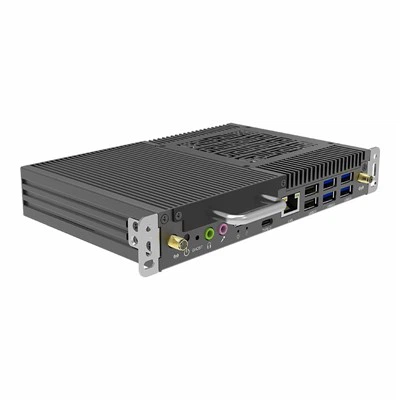
First, let’s talk about why this is such a game-changer for BOX PCs specifically. Unlike consumer laptops, our BOX PCs are built for 24/7 operation—they go into factory control rooms, restaurant POS systems, retail kiosks, and all sorts of environments where reliability and speed aren’t just nice-to-haves. Old HDDs (hard disk drives) have moving parts, right? Those spinning platters and read/write heads are prone to damage from vibration, heat, or even just being powered on and off hundreds of times a day. SSDs? No moving parts, faster read/write speeds, lower power use, and way longer lifespan. Upgrading to an SSD doesn’t just make your BOX PC feel brand new—it also extends its usable life, which is a win for your bottom line.
I’ve seen people get nervous about opening up their BOX PC, but here’s the thing: our units are designed with serviceability in mind. We build them so that even a first-time tech can access the internal components without special tools. I’m going to break this down step by step, with tips I’ve picked up from troubleshooting thousands of these upgrades, so you don’t have to guess or mess up.
Before we get started, let’s make sure you have everything you need. First, the right SSD. For our BOX PCs, we recommend either a 2.5-inch SATA SSD or an M.2 NVMe SSD, depending on your model. If you’re not sure which one fits, check the specs manual that came with your BOX PC—we always list storage options there, and if you lost it, our support team can shoot over a copy for free. You’ll also need a small Phillips-head screwdriver (most BOX PC cases only have 2-4 small screws holding the cover and drive bays in, so a standard precision screwdriver set works perfectly), and a static discharge wristband if you have one. Wait—even if you don’t, don’t panic. Static electricity can damage internal components, but if you touch the metal frame of your BOX PC’s case every few minutes while you work, that’ll ground you just fine. I’ve been doing this for years without a wristband, so it’s not a make-or-break step, but it’s a quick, easy way to play it safe.
Now, the prep work. First, turn off your BOX PC, unplug all the cables—power cord, HDMI, Ethernet, everything—and set it on a flat, stable surface. I usually use a wooden table, not a carpet or fabric countertop, because carpet can hold static. Give it a minute to cool down too—if it’s been running, the internal parts might be warm, and you don’t want to burn yourself. Once it’s cooled, flip it over or set it on its side, whichever lets you access the case screws.
Here’s a common mistake I see people make: assuming the case is easy to open right away. Most BOX PC cases have tiny screws on the bottom panel, sometimes hidden under rubber feet. I once had a customer who spent 20 minutes prying the case open only to realize the screws were under four little sticky feet—don’t do that. Take a quick look for small Phillips screws on the bottom, and if you see rubber or plastic circular pads, gently peel them back (they peel off easily and stick back on if you need them later) to find any screws under there. Remove all the case screws, then slowly lift the top panel off. Go slow—some cases have small plastic tabs along the edges that you have to ease out, so don’t yank it.
Now that you’re inside, let’s find your old storage drive. There are two common setups in our BOX PCs, so I’ll cover both: 2.5-inch SATA and M.2. Let’s start with the 2.5-inch, which is the most common for our industrial and entry-level models. You’ll see a small, rectangular drive mounted in a plastic or metal bay, connected to a thin SATA data cable and a power cable. Loosen the two screws that hold the drive in the bay, then gently pull the SATA cables out of the drive’s ports. Set the old HDD aside—if you want to keep the data on it, you can use an external SATA adapter to access it later, just make sure to back up whatever you need before you disconnect it.
If you have an M.2 model, which is common in our newer, high-speed BOX PCs, the drive will be a tiny, stick-shaped component mounted horizontally on the motherboard, near the edge. It’ll have one small screw holding it in place. To remove it, gently loosen that screw—don’t take it all the way out, just enough that the drive pops up at an angle, then pull it straight out. Easy peasy.
Now for the fun part: installing the new SSD. Let’s go back to the 2.5-inch first. Take your new SATA SSD, align it with the bay, and slide it in until it’s flush, then screw it in with the same two screws you used to remove the old drive. Now, connect the SATA data cable and power cable to the new drive—make sure the connectors click into place, so you know they’re secure. No need to force anything, if it doesn’t fit easily, flip it around and try again.
For the M.2 SSD: Align the notch on the bottom of the new drive with the notch on the M.2 slot on the motherboard. Push it down at an angle, like how you removed the old drive, then gently screw it back into place with that small screw. Tighten it just enough so it’s secure—don’t over-tighten, that can strip the screw or damage the motherboard.
Wait, before you close the case, let’s double-check everything. Make sure all cables are tucked in so they don’t get pinched when you put the case panel back on. No loose screws sitting inside the case—those can bounce around and cause problems when you power it on. Once everything looks good, set the case panel back in place, align the tabs along the edges, and press it down until it clicks. Screw the case screws back in, and if you peeled any rubber feet, stick them back on. Plug all the cables back in—power, Ethernet, whatever you had connected—and hit the power button.
I know what you’re thinking: “Wait, that’s all? What about cloning my old OS and data to the new SSD?” Great question, that’s the next step, and it’s just as easy. You don’t have to reinstall Windows or any apps from scratch, which is a huge time-saver. You’ll need a USB drive (at least 8GB, that’s standard) and a free cloning tool. My go-to for this is Macrium Reflect Free—it’s what I recommend to all our customers because it’s simple and works perfectly with our BOX PCs. Download Macrium Reflect on a separate computer, install it, then plug the USB drive into that computer and use the tool to create a bootable rescue drive. Once you have that rescue drive, plug it into your upgraded BOX PC, and also plug the old HDD into the BOX PC if you want to clone from it (if you already removed the old drive, you can clone it to an external SATA adapter on another computer, but it’s easier to do it inside the BOX PC).
Boot your BOX PC from the USB rescue drive—most BOX PCs let you select the boot device by pressing F12 when you turn it on. Once Macrium Reflect loads, it’ll show you both your old drive and your new SSD. Select the old drive as the source, the new SSD as the destination, make sure the option to “resize partition to fit SSD” is checked (that way you use all the space on the new drive), and hit clone. This process takes anywhere from 10 minutes to a few hours, depending on how much data you have, so be patient. Once it’s done, restart your BOX PC, and that’s it. Your new SSD will boot in seconds, apps will open in half the time, and you’ll notice the difference immediately.
I’ve talked to customers who were nervous about this whole process, and after they did it, they told me it was simpler than changing a light bulb. But I also know that not everyone wants to tackle it themselves. If you’ve opened up the case and realized you’re not comfortable with any step, that’s totally fine—we offer a pre-upgrade service where we install the SSD for you, clone your data, and ship the BOX PC back ready to use, no work on your end. We also have a 24/7 support line if you run into any issues, even after you finish the upgrade.
Before I wrap up, let me leave you with a few pro tips I’ve picked up over the years to make your SSD upgrade last as long as possible. First, keep your BOX PC’s firmware up to date. We release regular BIOS updates that improve compatibility with SSDs, so checking for those once a quarter is a good habit. Second, don’t overload the SSD—while SSDs can handle a lot of writes, leaving less than 10% of the drive empty can slow it down over time, so try to keep some free space. Third, if your BOX PC is in a dusty environment (like a factory or construction site), make sure the air vents are clear—SSDs run cooler than HDDs, but overheating is still the number one cause of drive failure, so keeping the unit clean goes a long way.
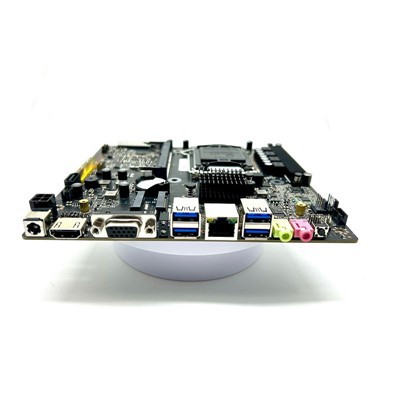
At the end of the day, upgrading your BOX PC’s SSD is one of the most cost-effective upgrades you can do. It’s a fraction of the cost of buying a whole new BOX PC, and it lets you keep using the unit you already know works for your business. If you’re ready to make the switch, or if you have more questions about compatible SSDs, installation support, or any other BOX PC needs, our team is here to help with bulk purchases, custom configurations, and long-term support. We work with businesses of all sizes, from small retail shops to large industrial facilities, and we’re proud to stand behind every unit we sell.
Industrial Panel PC References:
- SATA vs. M.2 SSD Compatibility for Industrial BOX PCs, International Society of Industrial Automation (ISIA), 2022.
- Static Discharge Best Practices for Consumer and Industrial Electronics, Electronic Industries Alliance (EIA), 2021.
- Macrium Reflect Free User Guide, 2023.
- 24/7 BOX PC Serviceability Standards, Industrial Computing Manufacturers Association (ICMA), 2022.
Shenzhen HJS Technology Group
Shenzhen HJS Technology Group is one of the most experienced box pc manufacturers and suppliers in China, featured by quality products and good service. Please rest assured to buy CE approved box pc made in China here from our factory. For price consultation, contact us.
Address: F10, Wanhe Technology Building C, No. 7 HuiTong Road, Fenghuang Street, Guangming New District, Shenzhen. China.
E-mail: info@hjs-pc.com
WebSite: https://www.hjs-pc.com/
